
Signal Blocks Screen Capture by iOS 27 and Android AI
Admin
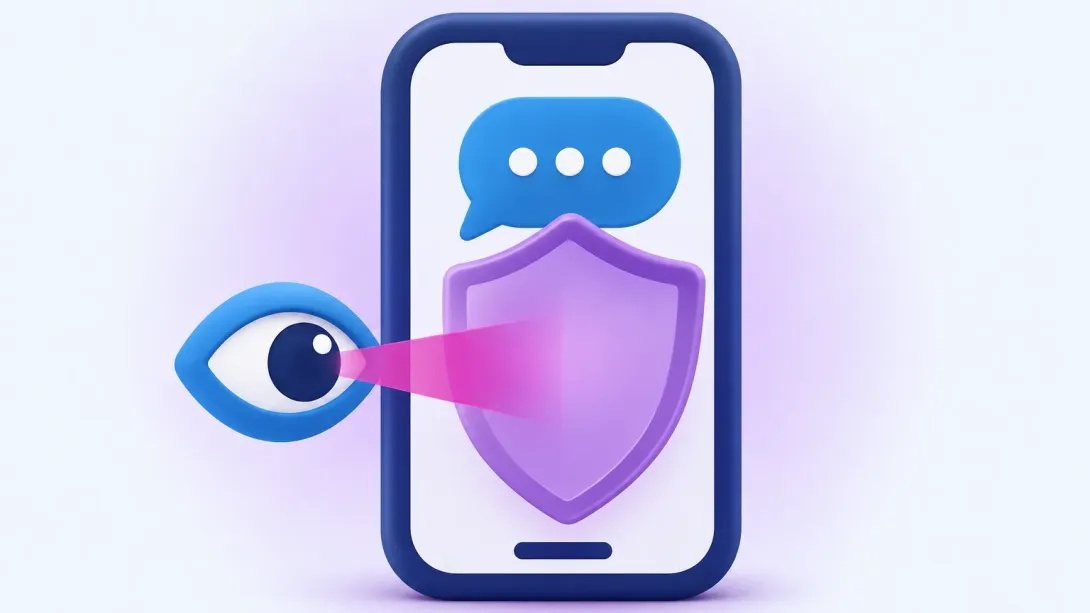
On November 20, 2026, Signal said it now prevents screenshots in its iOS 27 app and, on Android, whenever it detects an AI assistant trying to capture the screen. The goal is to keep operating-system AI agents from storing your chats. It matters to anyone using Siri, Gemini or other agents on their phone.
What we know
- The announcement: Meredith Whittaker published it on Signal's official blog on November 20, 2026. Signal says it is restricting the AI agents built into mobile operating systems from capturing and storing your Signal data.
- The problem it describes: according to Signal, Google and Apple are building features such as Gemini Intelligence with Google Gemini and Onscreen Awareness with Siri AI deep into their systems. These agents scan what is on screen, and once captured, the content sits in whatever local database or remote server the agent uses, outside the app's control.
- What changes: on iOS 27, Signal prevents screenshots inside the app. On Android, it does so when an AI assistant tries to capture screen data, on the versions where Signal can detect it.
- It can be turned off: people who want screenshots can disable the protection in Signal's settings. The screenshots in the announcement show the setting as «Block Siri AI» on iOS and «Screen security» on Android. Signal warns that turning it off may expose your content, and your contacts', to those agents.
- What it doesn't cover: Signal calls its remedy incomplete: blocking screenshots does not stop other routes, such as reading content already stored on the device through the filesystem. It also cannot apply the protection on macOS because, Signal says, OS makers give developers no way to restrict this access without breaking the core experience.
- Third-party agents: Signal also wants tools against agents such as Meta's Muse, which, the post says, use the accessibility permissions people grant during setup.
- What it asks of Apple, Google and Microsoft: an easy, documented way for an app to opt out of AI data access and processing (screen reading, files, notifications and other routes), plus technical documentation on how these agents work. Signal says it is «cautiously optimistic» because Google and Apple are talking with it.
- The precedent: in 2025, Signal already blocked screenshots by default on Windows 11 to stop Recall, Microsoft's AI feature that saves snapshots of what appears on screen.
What changes and what doesn't
On an iPhone running iOS 27, or an Android phone where Signal detects the assistant, your Signal chats are no longer visible to the system's AI agent through the screen. You also cannot take screenshots in Signal without first turning the protection off.
Nothing else on the phone changes. The measure only covers Signal: the other apps you work with (email, messaging, your CRM, banking) remain just as visible to the assistant if you allow it. And it does not close every door: Signal itself says file access is out of scope and that macOS has no protection.
How to know if this affects you
If you use an AI assistant on the phone or computer you work on, or you are testing agents that operate apps for you, this check takes ten minutes:
- Check Signal's setting: look for «Block Siri AI» on iOS or «Screen security» on Android in the app's settings. If you talk to clients or suppliers on Signal, keep it on; if you need a screenshot, turn it back on afterwards.
- List what else the assistant can see: write down the apps that hold customer data (email, WhatsApp, your CRM, your order sheet). None of them has Signal's protection. Decide which ones you do not want the assistant to read. According to The Hacker News, iOS 27.2 added an option to exclude apps from Siri; on Android, review which apps Gemini has connected in its settings.
- Review accessibility permissions: on Android (and on a Mac), check which apps have accessibility or screen-recording permission. Signal notes that some third-party agents use that permission to read other apps. If you installed an agent to try it and no longer use it, revoke the permission.
- Keep sensitive data off screen: passwords, banking details and customers' personal data should not be on screen while an agent can see it. If you hand tasks to an agent that uses your computer, do it in a session or profile where nothing sensitive is open.
Related: Gemini Can Now Use Your Mac for You: What to Check
Sources
- Signal, «Signal is Serious About Protecting Your Privacy», Meredith Whittaker, November 20, 2026
- Signal, «By Default, Signal Doesn't Recall», on blocking Recall on Windows 11, May 21, 2025
- The Hacker News, November 21, 2026
Updates: if Signal extends the protection to other platforms, or Apple or Google announce a way to exclude apps from their AI agents, it will be added here with a link.
Worried about how this affects your website?
We will go over what to change with you. It is a free 30-minute call.